
Add or Remove a Customer from a Mailing List
Steps for Adding a Customer to a Mailing List Click Customers > Customer List. Search for the Cus
Enter whatever you're curious about and we'll give you a smart summary of the best answers as well as relevant articles.

 January 12, 2026
The Bad Emails feature is designed to help you manage, identify, and address problematic email addresses within your communication system. By flagging invalid or consistently failing email addresses, you can prevent them from receiving further communications until you can remove them. This will help you maintain the integrity and reliability of your email list.
You can get to this part of the system by hovering over the Marketing area in the main system menu on the left and clicking on Communications in the flyout menu.

As part of this feature, the system will be monitoring email activity in the background for you at all times. Email addresses are automatically flagged as Bad Emails if they encounter three consecutive delivery failures or if they are identified as being invalid.
To work with your email list, once you are on the Communications module page, click the Bad Email Addresses tab at the top.
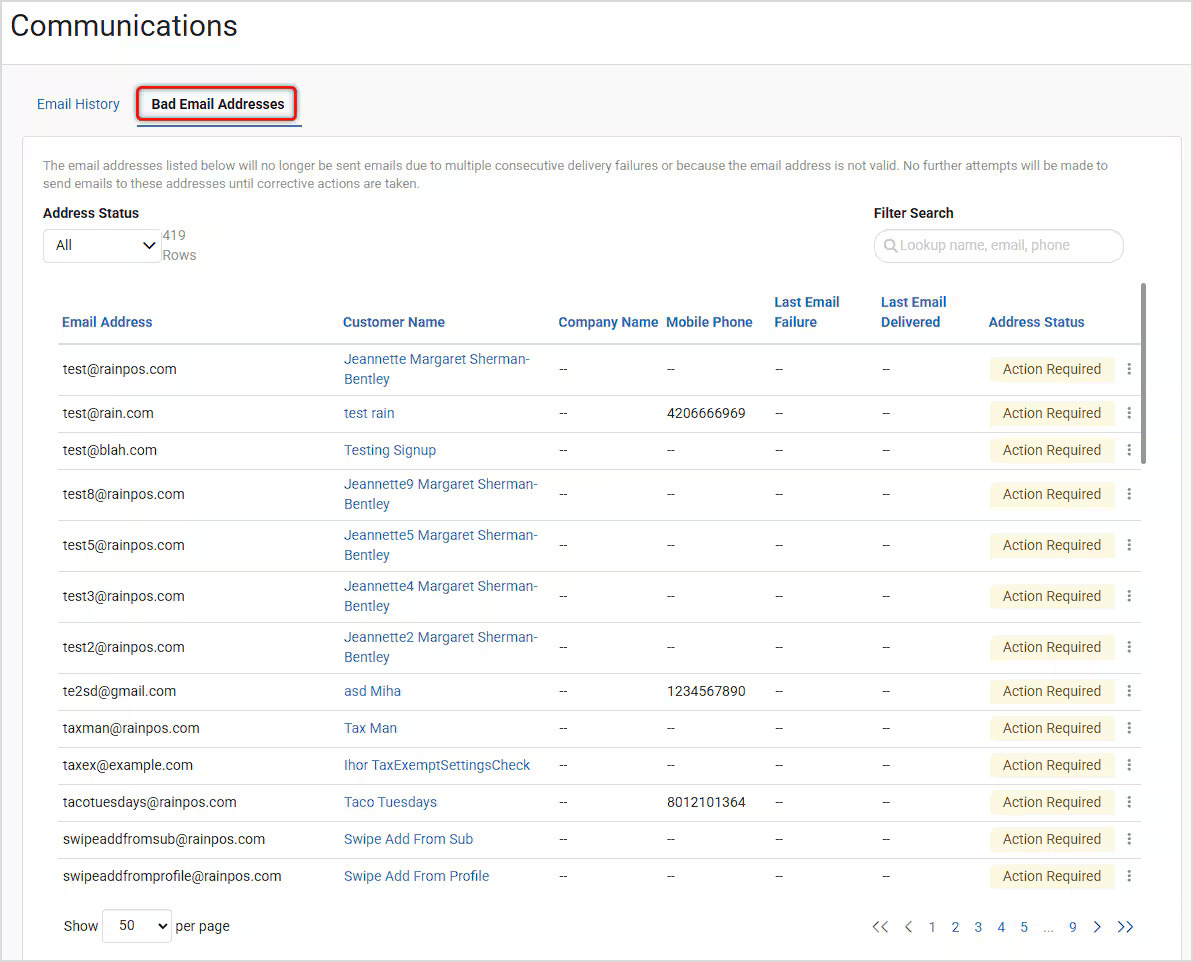
When the system detects a bad email address, it will add it to this list, 'quarantining' it until you deal with it. The email addresses you see have all failed three times when the system tried sending them a message.
At the top on the left you are able to filter to view addresses that have Action Required, Retry Failed, or any you've manually Ignored. You can also use the Filter Search in the upper right to search by Customer Name, Email Address, or Mobile Phone.
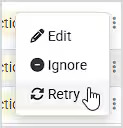
For each item in the list, using the three-dot menu on the far right, you are able to take one of the following actions (or you can just leave them: no action is required and they will remain quarantined):
In the upper right of the system, the Notification Bell will alert you about newly flagged emails weekly.

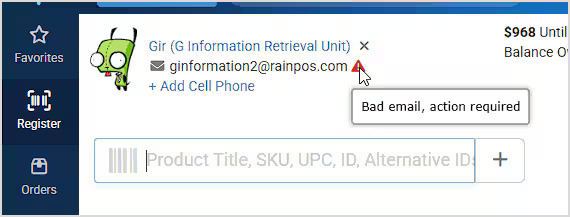
Indicators for bad emails appear in the customer area of the Register and in the Edit Customer window, letting you know when an email address needs your attention.
Is this page helpful?
×Help us improve our articles